Compositions
This chapter will teach you how to use compositions within a fleet.
Adding the first composition
When you click the Compositions tab in the navigation bar, you will see an empty list of compositions and an Add first composition button.
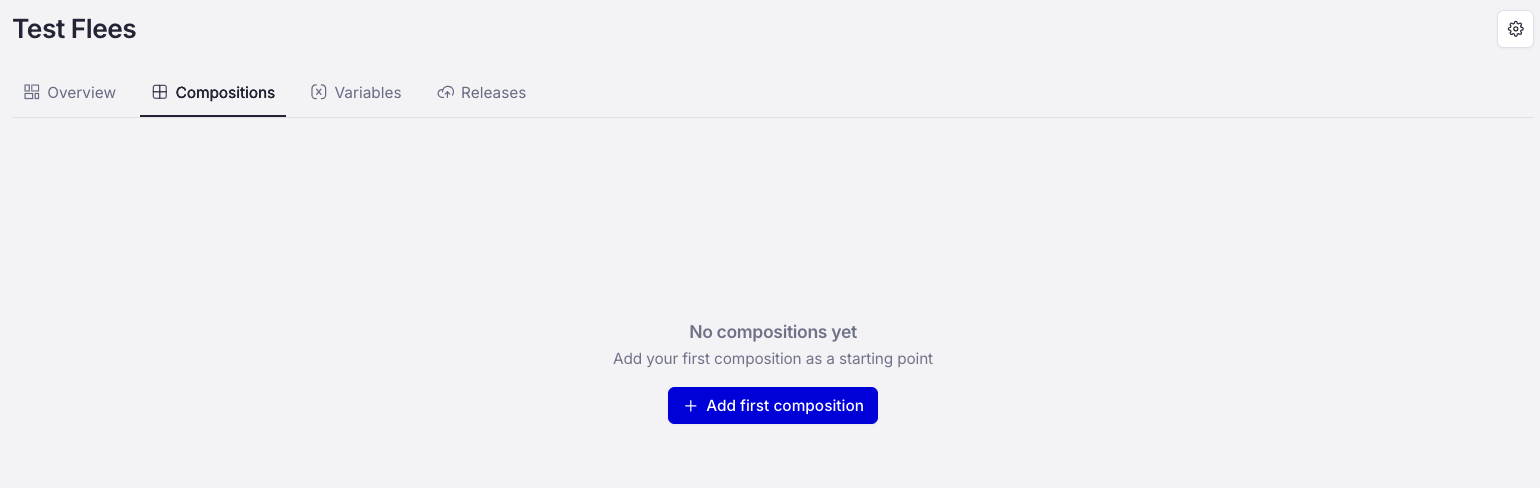
Click the Add first composition button and choose one of the existing compositions. If you don’t have any compositions yet, see REFERENCE TO THE COMPOSITION PAGE.
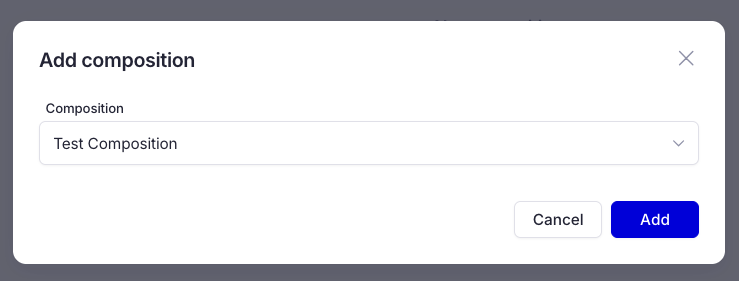
Adding a composition
Press the Add button and your composition will be added to your fleet.
Adding additional compositions
Your fleet now has its first composition, but a fleet can contain several. To add a new composition, click the dropdown menu that shows the name of the composition you added earlier.
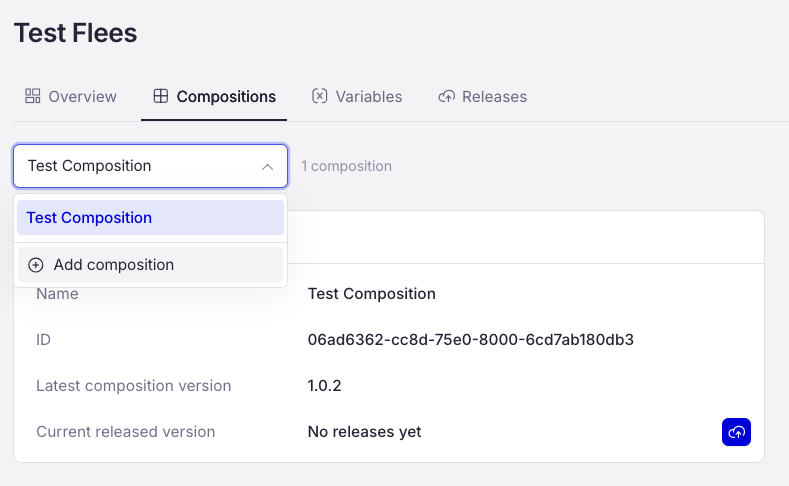
Click Add composition and choose the one you want. After you have added a new composition, you can use the dropdown menu to switch between compositions.
Detaching a composition
If you no longer need a composition in your fleet, you can always detach it from the fleet.
Note
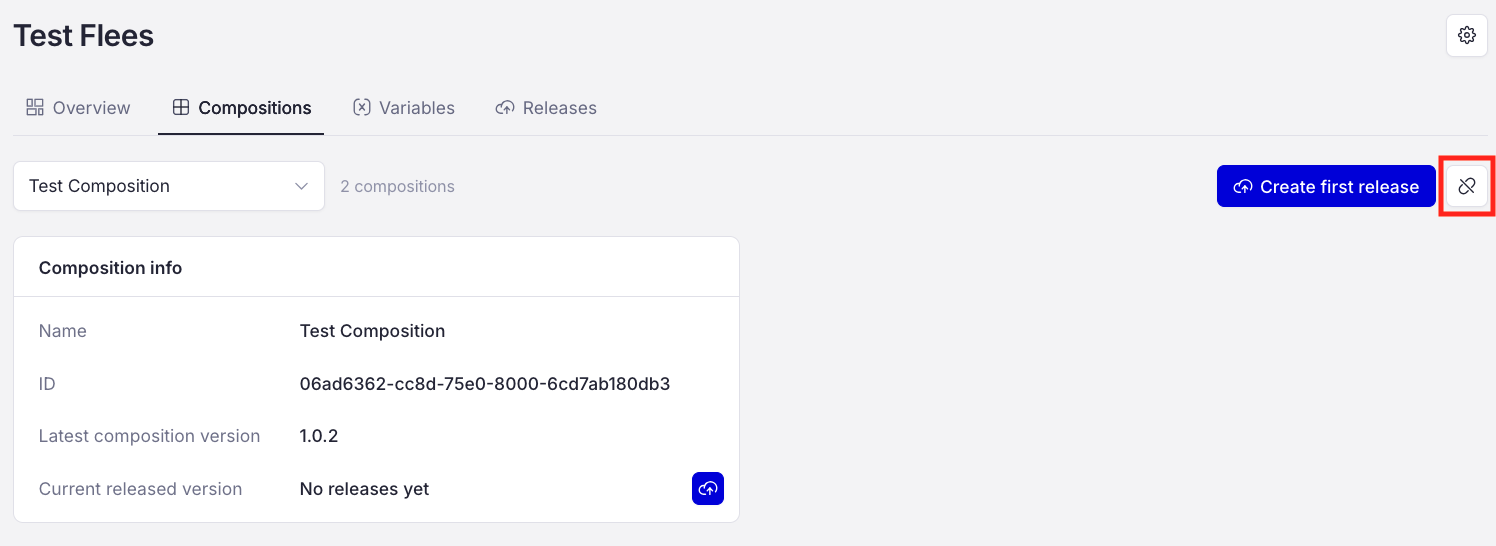
You cannot detach a composition if its release has not been fully deployed.
To do that, click the Detach button, which you can find here:
Important
Removing the composition from the fleet removes all associated containers from the devices (the composition’s application will no longer run on the fleet’s devices).
Deploying compositions
Deploying a composition is called a Release. To learn how to create and manage releases, see Releases